 CarFlow AI
Car background remover plugin for Photoshop
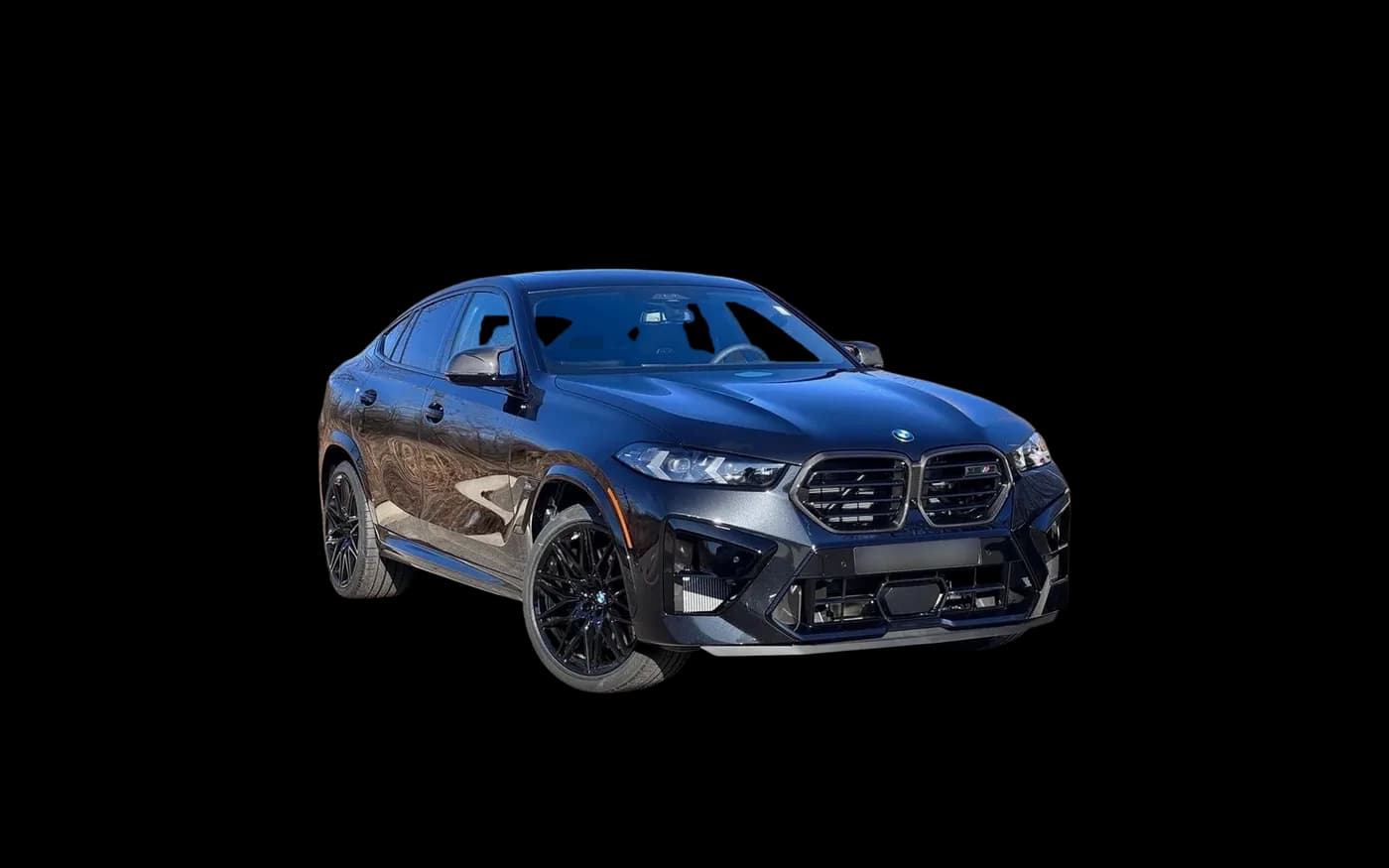
Cut out the car, make the glass see-through, add a shadow and a floor reflection, and put the car on a new background, without leaving Photoshop. Every part arrives on its own masked layer, so you finish the edit your way.
- Free install
- Photoshop 2024 (v25) and later
- 10 free credits to start
 CarFlow AI148 credits
- CarFlow
- CarFlow - windows
- CarFlow - shadow
- CarFlow - reflection
- CarFlow - background
 Background
What lands in your Layers panel
One click adds five layers above your photo, in one history step. The original layer stays in the document, switched off and untouched, so you can always go back to it.
CarFlow
A copy of your original with a mask on the car's outline. The pixels are all still there: paint the mask to fix a mirror or an antenna, the car itself never changes.
CarFlow - windows
The glass on its own layer, semi-transparent, so the new background shows through the windows the way it would in a real studio.
CarFlow - shadow
A black fill with a soft shadow mask under the car. Change its opacity or blur it until it matches the light on the backdrop.
CarFlow - reflection
An optional glossy-floor reflection under the car. Turn it on for showroom floors, leave it off for asphalt and cobblestone.
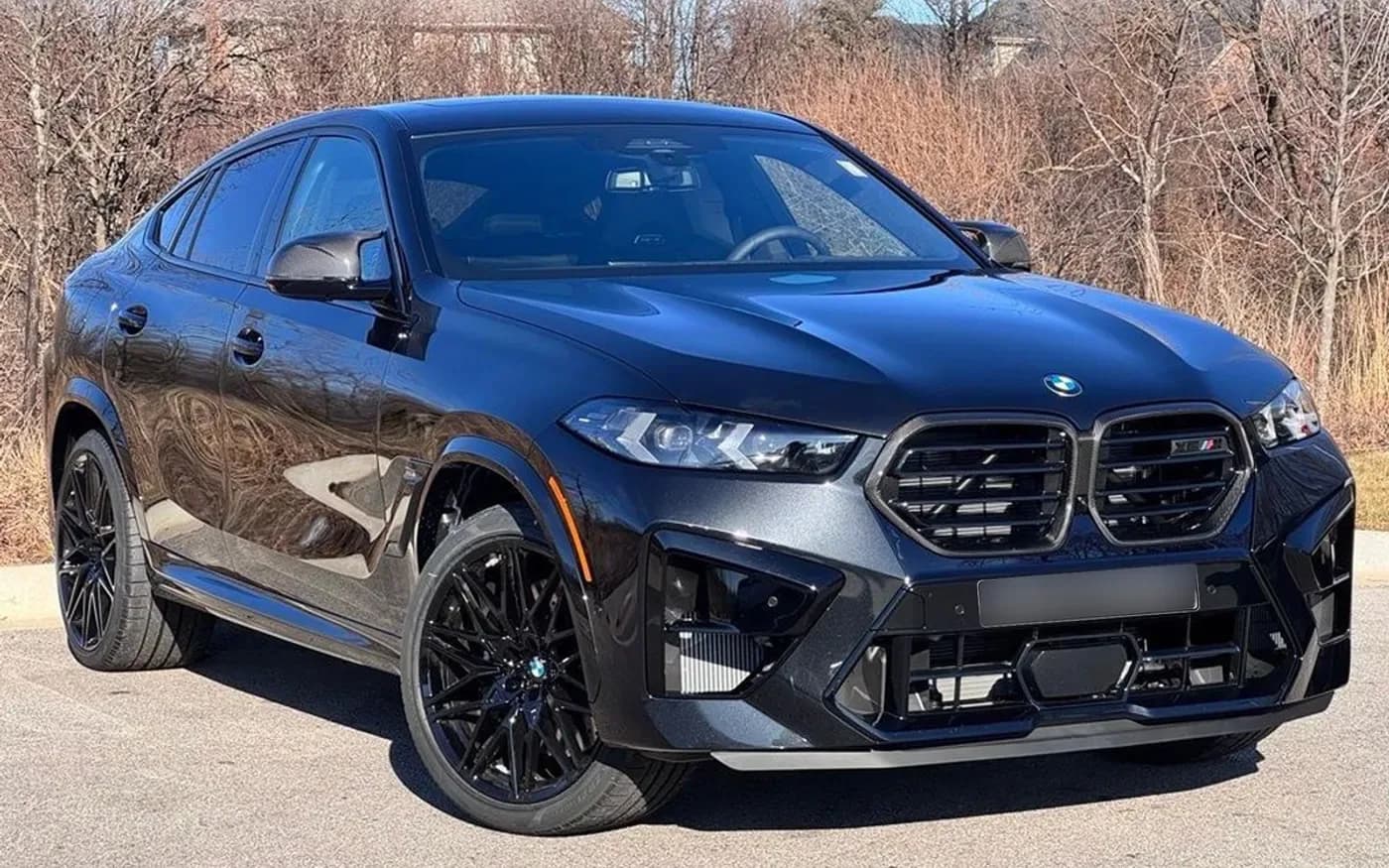
CarFlow - background
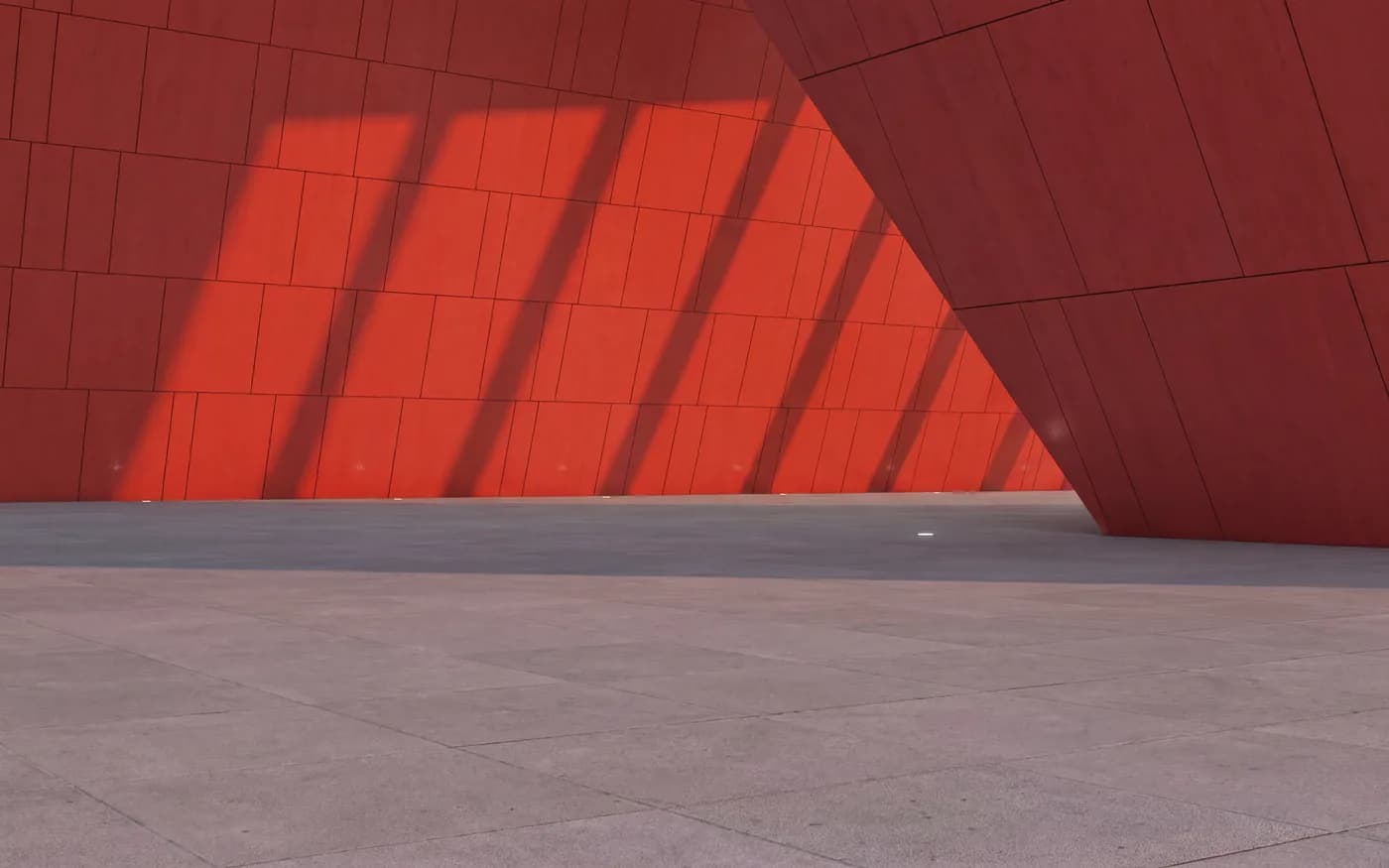
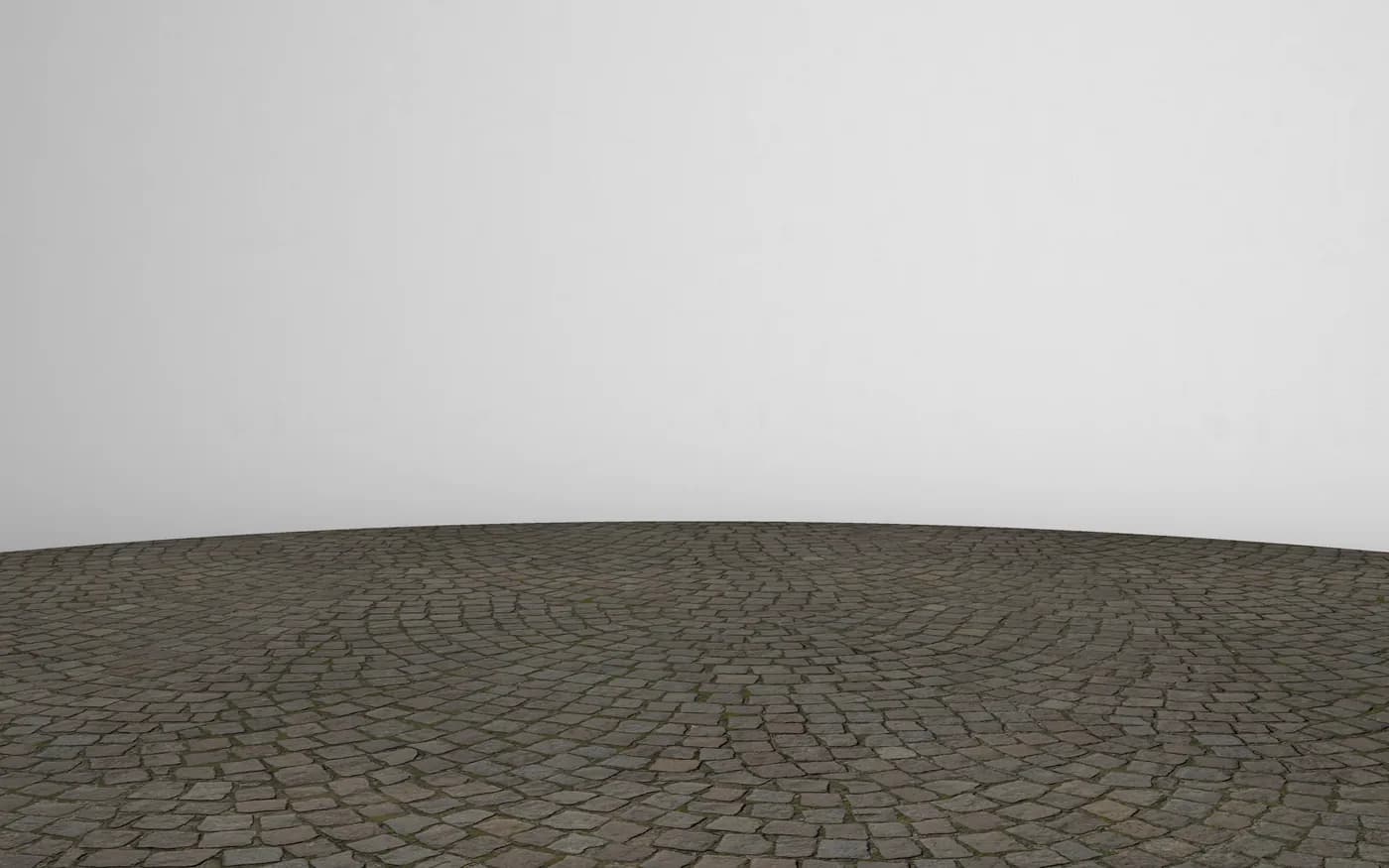
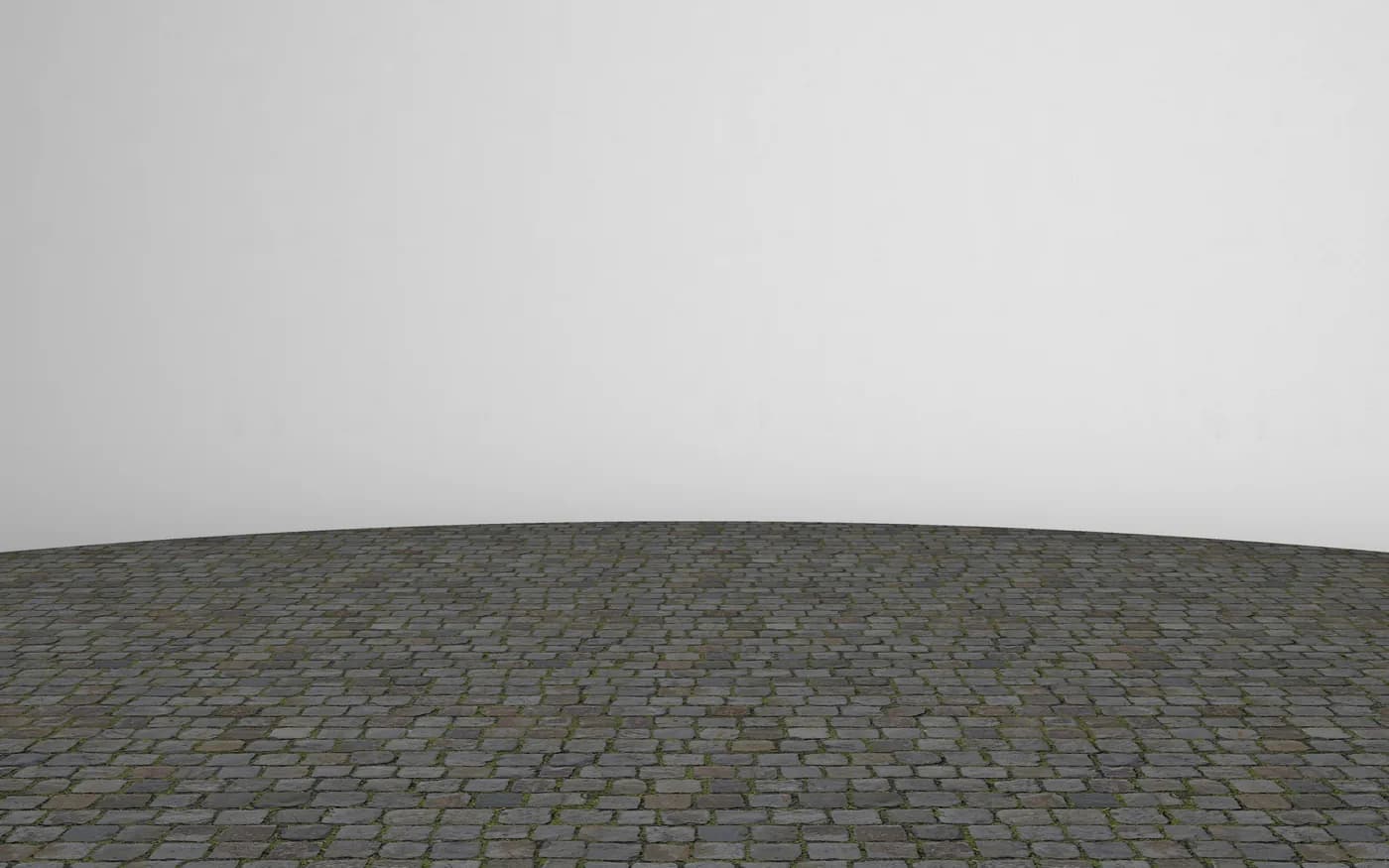
A studio backdrop or your client's own showroom, placed under everything. Pick another one in the panel and only this layer changes.
Your original photo stays at the bottom of the stack, hidden. Undo removes the whole edit in one step: Remove Background (CarFlow AI).
Built for the jobs on a car photo editing order
Dealer and marketplace clients ask for the same things on every car. The plugin does the slow part of each one, and you keep the final say.
Car clipping path and deep etching
The car comes out on a clean mask, ready to refine with a brush where a client wants something different. No pen path to draw.
See-through car windows
The hardest part to do by hand. The glass is separated from the body, so the backdrop shows through the side and rear windows.
Realistic car shadow
A contact shadow under the tyres and a soft shadow under the body, on its own layer instead of baked into the photo.
Floor reflection
The glossy showroom look, as a separate layer you can fade, blur or switch off for each photo.
Car background replacement
Built-in studio backdrops, or upload your client's showroom once in your CarFlow AI account and use it on every car in the set.
Batch editing a whole vehicle set
Open the 20 or 40 photos of a car, click Process all open photos, and each document gets the same layers and the same backdrop.
Swap the backdrop without cutting the car again
The car, glass, shadow and reflection stay as they are. Only the background layer changes, so trying three backdrops for a client takes three clicks.
The backdrops shown here are built into the plugin. Add background in the panel opens your CarFlow AI assets page, where you upload your own.
Set up in five minutes
- 1
Install the plugin
Open the CarFlow AI listing on Adobe Exchange and click Install. Creative Cloud adds it to Photoshop 2024 or later.
- 2
Create a CarFlow AI account
Sign up at carflowai.com. New accounts get 10 free credits, no card needed.
- 3
Paste your API key once
Generate a key on the API page of your account and paste it into the plugin's Settings. The key is kept in Photoshop's secure storage.
- 4
Click Remove Background
Open Plugins > CarFlow AI, choose shadow, reflection and backdrop, then run it on the active photo or on all open photos.
Pen tool, web tools or the plugin
How the three usual ways of cutting out a car compare when the result has to go back to a client as an edited photo or a layered file.
Stays in Photoshop
CarFlow AI pluginYes, one panel
- Pen tool by hand
- Yes
- Web background removers
- Upload, download, place again
Separate layers with masks
CarFlow AI pluginCar, windows, shadow, reflection, background
- Pen tool by hand
- Yes, if you build them
- Web background removers
- Usually one flat PNG
See-through windows
CarFlow AI pluginYes, own layer
- Pen tool by hand
- Extra masking per window
- Web background removers
- Rarely
Shadow under the car
CarFlow AI pluginYes, own layer
- Pen tool by hand
- Painted by hand
- Web background removers
- Sometimes, baked in
Floor reflection
CarFlow AI pluginOptional, own layer
- Pen tool by hand
- Built by hand
- Web background removers
- Rarely
Whole vehicle set at once
CarFlow AI pluginAll open photos
- Pen tool by hand
- No
- Web background removers
- Depends on the tool
Original photo kept
CarFlow AI pluginYes, hidden in the document
- Pen tool by hand
- Yes
- Web background removers
- In a separate file
Cost
CarFlow AI plugin1 credit a photo, failures free
- Pen tool by hand
- Your time
- Web background removers
- Per image or per month
| Pen tool by hand | Web background removers | CarFlow AI plugin | |
|---|---|---|---|
| Stays in Photoshop | Yes | Upload, download, place again | Yes, one panel |
| Separate layers with masks | Yes, if you build them | Usually one flat PNG | Car, windows, shadow, reflection, background |
| See-through windows | Extra masking per window | Rarely | Yes, own layer |
| Shadow under the car | Painted by hand | Sometimes, baked in | Yes, own layer |
| Floor reflection | Built by hand | Rarely | Optional, own layer |
| Whole vehicle set at once | No | Depends on the tool | All open photos |
| Original photo kept | Yes | In a separate file | Yes, hidden in the document |
| Cost | Your time | Per image or per month | 1 credit a photo, failures free |
Pay per photo, not per seat
The plugin is free to install. Each processed photo uses 1 credit from your CarFlow AI account, the same credits as on the website and the API. If a photo fails, nothing is charged.
10 free credits when you sign up
Monthly plans
- Essential$8.99150 credits$0.06 a photo
- Lite$24.99500 credits$0.05 a photo
- Standart$49.991500 credits$0.033 a photo
- Enterprise$99.993500 credits$0.029 a photo
Weekly passes and one-time top-ups are on the pricing page. See all prices
Moving from the remove.bg Photoshop plugin?
remove.bg's standalone service, including the self-serve API its Photoshop plugin works through, closes on December 1, 2026. The CarFlow AI panel follows the same pattern, a few options, one Remove Background button and the result as layers, so switching takes one API key. For cars it also adds see-through windows and a floor reflection.
Compare remove.bg and CarFlow AIQuestions from retouchers
Install the CarFlow AI plugin from Adobe Exchange, paste your API key into its Settings, open the photo and click Remove Background in the CarFlow AI panel. The car, windows, shadow, reflection and new background are added as separate layers above your original.
The plugin puts the glass on its own layer, CarFlow - windows, at partial opacity, and takes it out of the car mask. The background shows through the windows straight away. Change the layer's opacity if you want the glass darker or lighter.
Leave Shadow set to Car in the panel. The plugin adds CarFlow - shadow: a black fill layer with a shadow mask built from the car's footprint. Lower its opacity or add a blur to match the light of your backdrop.
Yes. Open all the photos of the vehicle and click Process all open photos. Each document gets the same layers with the shadow, reflection and backdrop you picked, so the set looks consistent.
Layers with masks. The car layer is a copy of your original with a mask, so you can paint the mask to adjust edges. Shadow, reflection, windows and background are separate layers, and the original stays hidden at the bottom.
Photoshop 2024 (version 25.0) and later. It is a UXP plugin installed through Creative Cloud from Adobe Exchange.
Installing the plugin is free. Each processed photo uses 1 credit from your CarFlow AI account, and a failed photo is never charged. New accounts get 10 free credits. Monthly plans start at $8.99 for 150 credits, and the largest plan works out to about 3 cents a photo.
Yes. Click Add background in the panel: it opens the assets page of your CarFlow AI account, where you upload the showroom photo. Refresh the list in the panel and it sits next to the built-in backdrops for every photo after that.
No. The plugin copies your photo into the new car layer and hides the original. Undo removes the whole edit in one step.
Yes. Credits belong to the CarFlow AI account, and every Photoshop install on the team can use the account's API key. If the key leaks, regenerate it on the API page and paste the new one into each install.
Not working in Photoshop today?
Put the plugin on your next car set
Install it free from Adobe Exchange, sign up for 10 free credits and paste your key once.